
How to use ThinLinc to login to Arrhenius
Through ThinLinc you can get a remote desktop on the Arrhenius log-in nodes.
What is ThinLinc?
ThinLinc is a remote desktop program developed by Cendio which allows users to connect to a remote server using a ThinLinc Client. It uses ssh for authentication and VNC for graphics. ThinLinc has two main components, Server and Client. Thinlinc server is setup by NAISS admins to enable remote desktop environment. ThinLinc client which is available for Linux, Mac and windows can be installed by users on their laptop or desktop.
How ThinLinc can help in my computation?
A user connecting to ThinLinc server is presented with a remote desktop graphical environment where they have access to graphical applications, utilities, terminal etc. Users can create or update their files on Lustre file system and submit interactive jobs to SLURM.
Note that through ThinLinc you will be on the log-in nodes so the usual warning that this is a shared node and anything heavy should instead be submitted via jobs.
Getting started with interactive HPC
Users should download ThinLinc client (tlclient) which is required to connect to remote ThinLinc server. Depending upon which operating system you are using, you can download relevant installation media from Cendio download page. Once downloaded, run the installation and follow the installation dialog box.
Authentication in ThinLinc Client using password and TOTP
After starting the ThinLinc client enter...
In the field Server you should enter tl.hpc.arrhenius.naiss.se
and then fill in your username and Password.
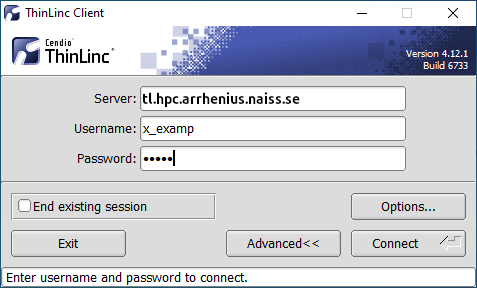
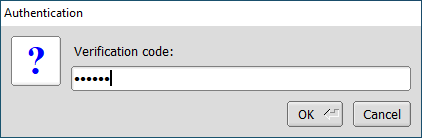
After you press Connect, you will get a new window asking for Verification code. Enter the 6 digits from your TOTP app, and you will be logged into Thinlinc.
If your Thinlinc client is set to the public key mode (i.e it shows Server, Username and Key prompts), you need to switch it to password mode...
- Click
Advancedif option button is not visible - Click the
Optionsbutton - Go to the
Securitytab - Choose
Password.
Unfortunately the Thinlinc client does not support combining an SSH public key with TOTP. It may become possible to use SSH public key + TOTP in a future version of the Thinlinc client.
Disconnect or Logout
If you don’t have application running in remote desktop environment, please logout from current sesssion by selecting Logout as shown below to free up ThinLinc licenses for someone else.
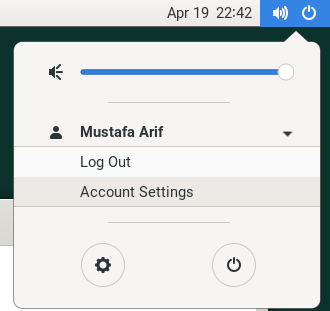
If you simply close your ThinLinc client, your session will continue to run on server. You can then reconnect via ThinLinc client and same session will resume. This however is not recommended if you don’t have any active application running on the ThinLinc node since this uses up ThinLinc licenses.
 Source repository