
File transfer to/from Arrhenius using FileZilla
There are multiple ways to transfer data to/from Arrhenius.
Here, we show how to transfer files using a graphical tool called FileZilla, which is a secure file transfer tool that works under Linux, Mac and Windows.
Procedure
Would you like a video?
Watch the YouTube video File transfer to/from Arrhenius using FileZilla
To transfer files to/from Arrhenius using FileZilla, do the following steps:
1. Start FileZilla
How to start FileZilla depends on your operating system:
| Operating system | How to start FileZilla |
|---|---|
| Linux | Go to a terminal and run SSH_AUTH_SOCK=null filezilla & |
| Mac | Go to a terminal and run open -a FileZilla |
| Windows | As per usual |
Why is Linux different?
In this post in the FileZilla forums, we learn that FileZilla cannot disable SSH key login by using menus.
Instead, a later comment shared this workaround.
Why is Mac different?
No idea. We can only assume because it is a Linux-like system.
2. Start FileZilla's site manager
From the menu, select 'File | Site manager'
Where is that?
It is here:
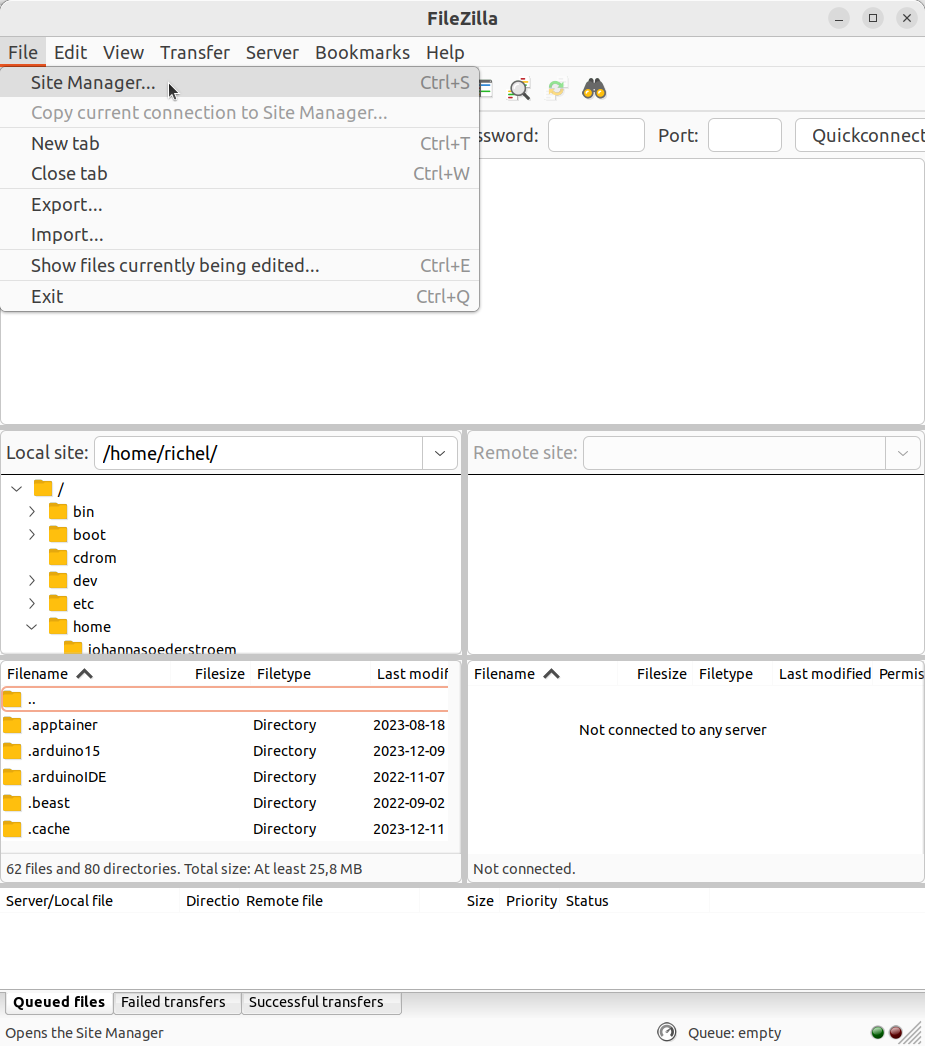
The FileZilla 'File' menu contains the item 'Site manager'
3. Add a new site in FileZilla's site manager
In FileZilla's site manager, click 'New site'
Where is that?
It is here:
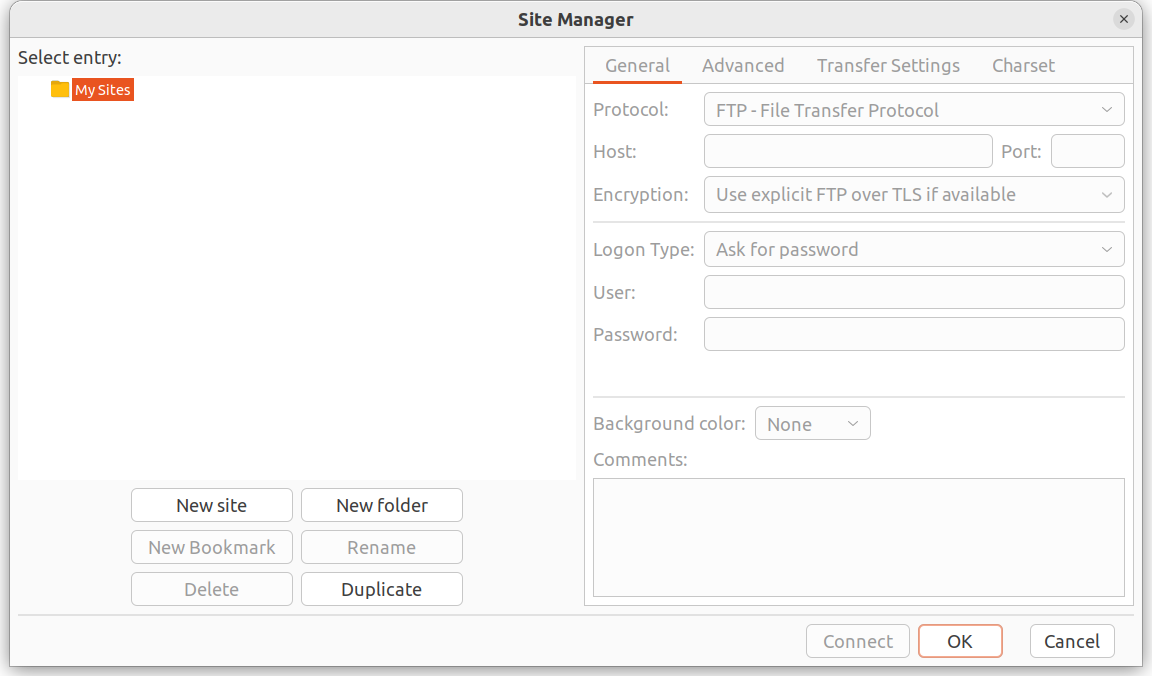
4. Setup the site
In FileZilla's site manager:
- create a name for the site, e.g.
Arrhenius HPC. - For that site, use all standards, except:
- In the 'General' menu:
- Set protocol to 'SFTP - SSH File Transfer Protocol'
- Set host to
login.hpc.arrhenius.naiss.se - Login type: Interactive
- Set 'User' to your Arrhenius username, e.g.
sven
- In the 'Transfer Settings' menu:
- Click 'Limit number of simultaneous connections'
- In the 'General' menu:
What does that look like?
It looks similar to this:
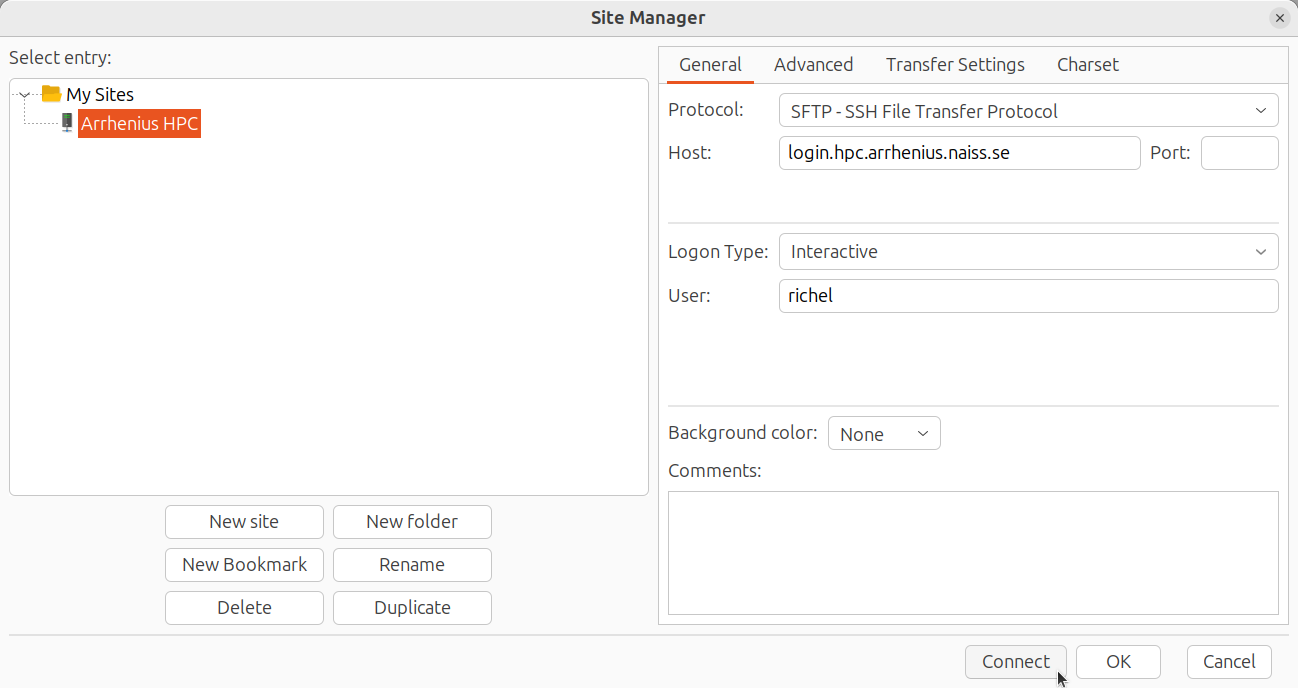
And the 'Transfer Settings':
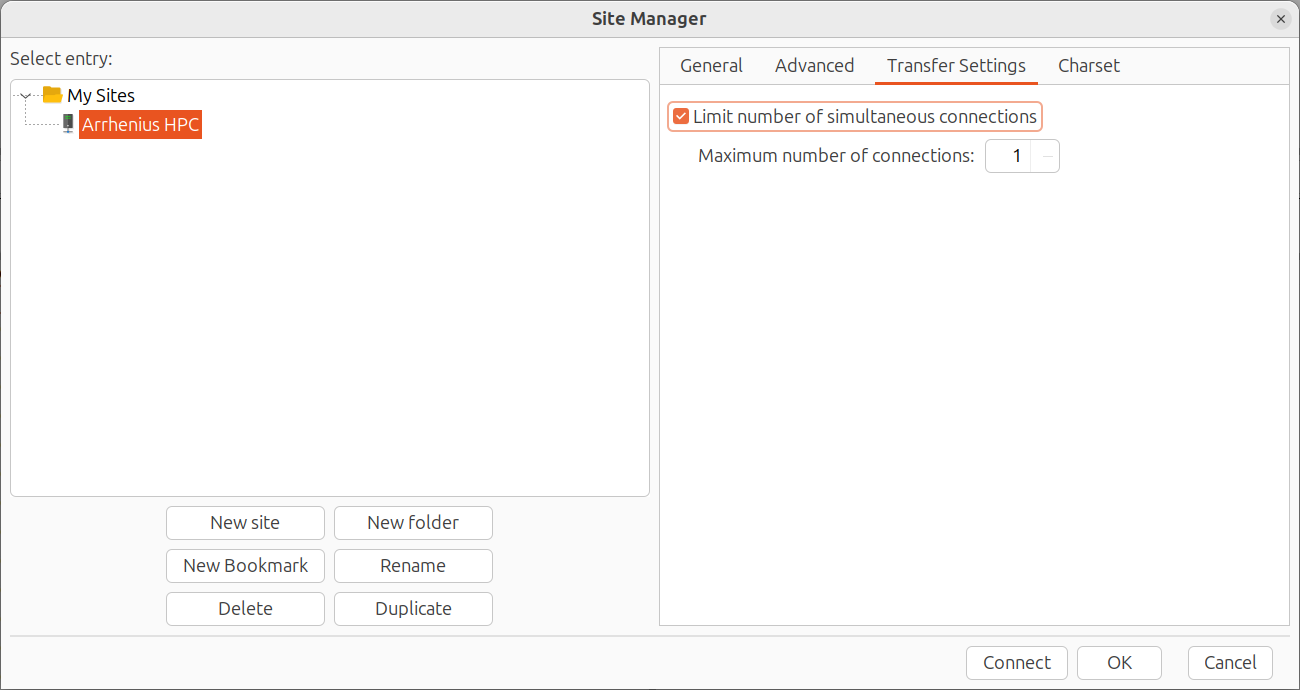
5. Connect to the site
Click 'Connect'.
6. Give your password
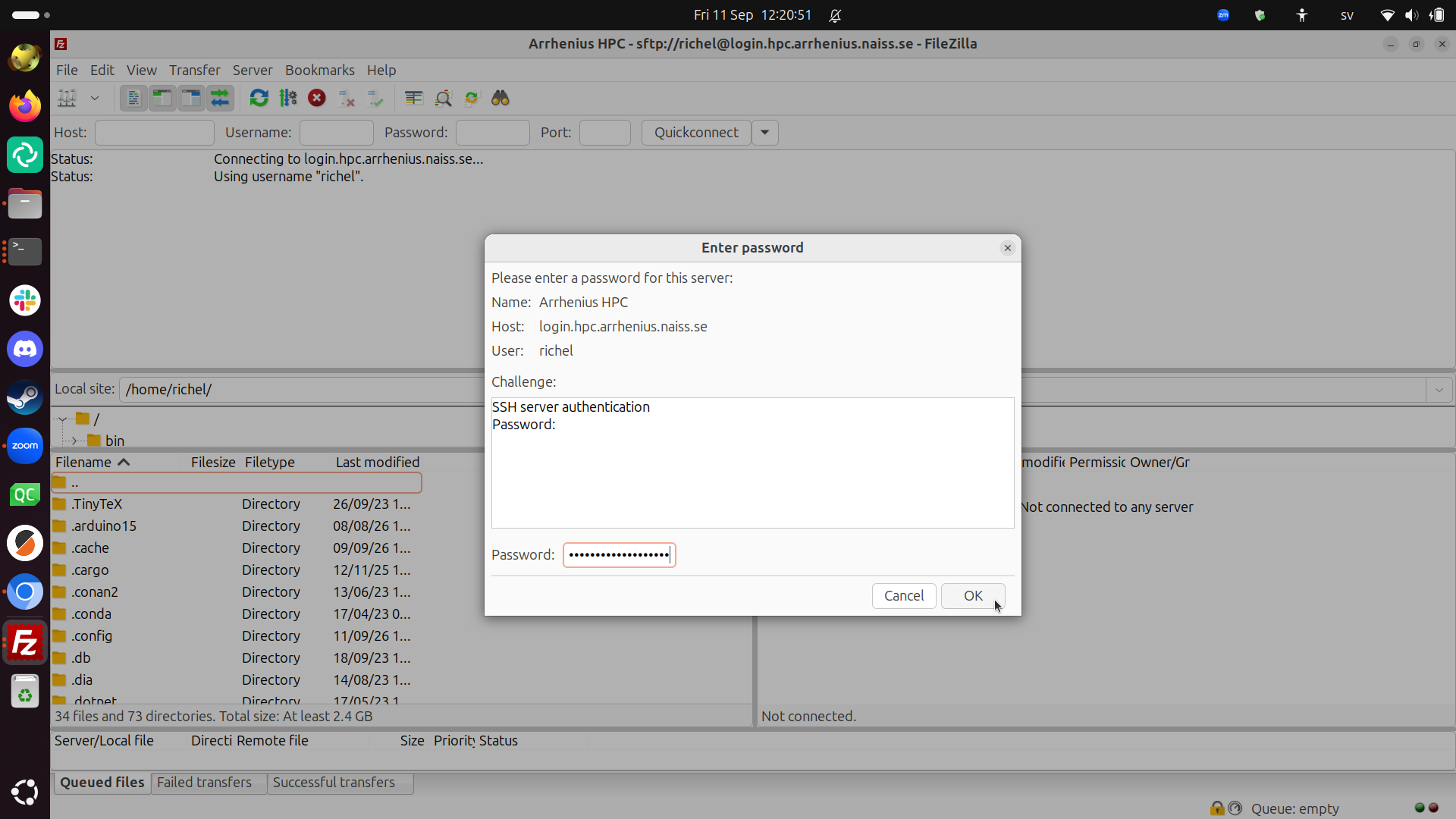
FileZilla asks you to provide your password.
Type your password and click 'OK'.
What does that look like?
It looks similar to this:
7. Give your 2FA
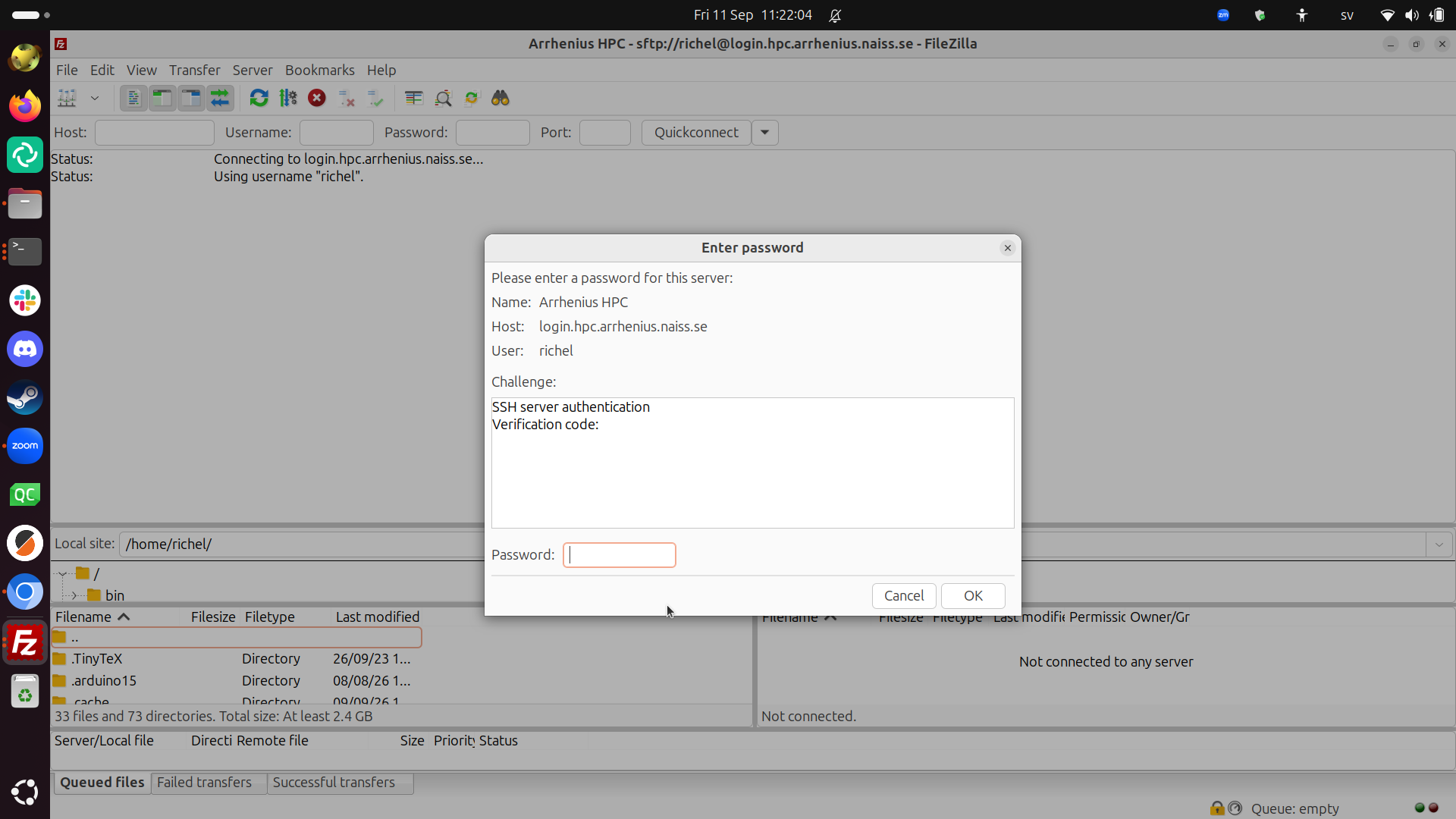
FileZilla asks you to provide a time-based one-time password.
Give your 'Arrhenius HPC' time-based one-time password and click 'OK'.
What does that look like?
It looks similar to this:
8. Ready to transfer files
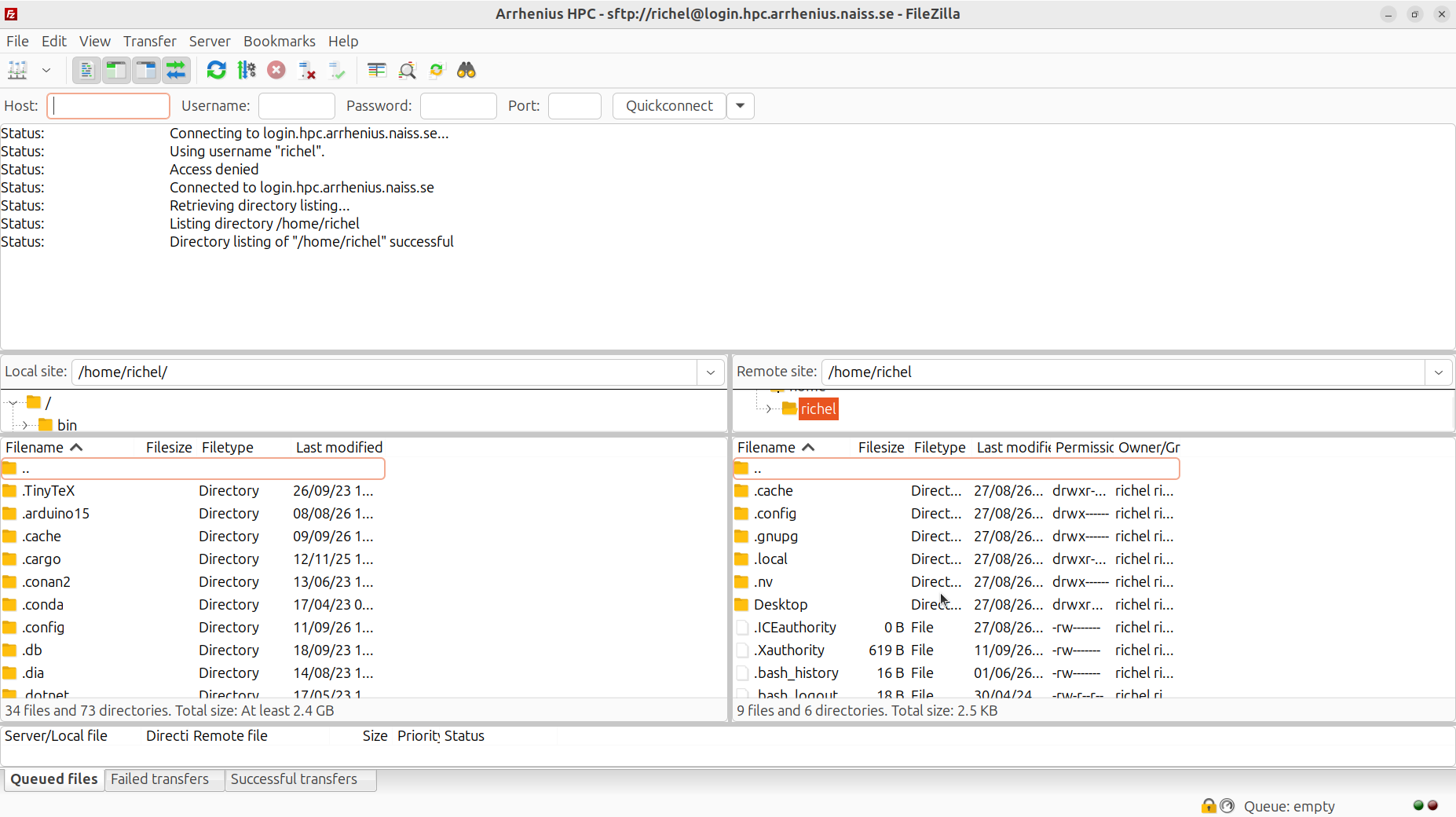
Now you can transfer files between your local computer and Arrhenius.
What does that look like?
It looks like this:
 Source repository